TradeRadar Setup Guide
Download the whole guide as PDF
1. Getting started
Create a free account, see what Free and Pro include, install the app and turn on phone alerts. About 3 minutes.
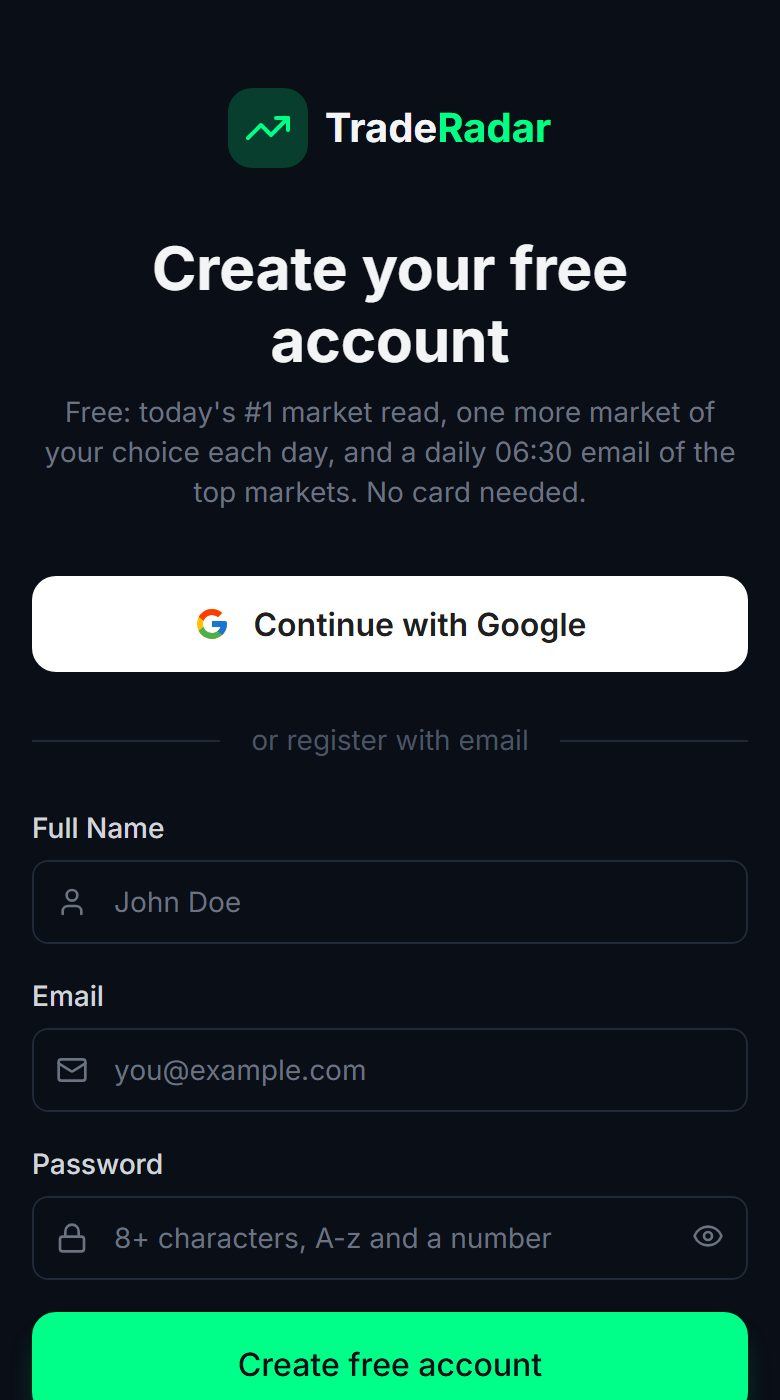
Create your free account
Open gettraderadar.com/register and sign up with Google or your email. No card needed. Free includes today's #1 market on Market Lens in full, 3 free market unlocks a week, the morning "top 5 to watch" email, News Radar, 1 Prop Copilot account, the journal and the Trade Panel on your free markets.
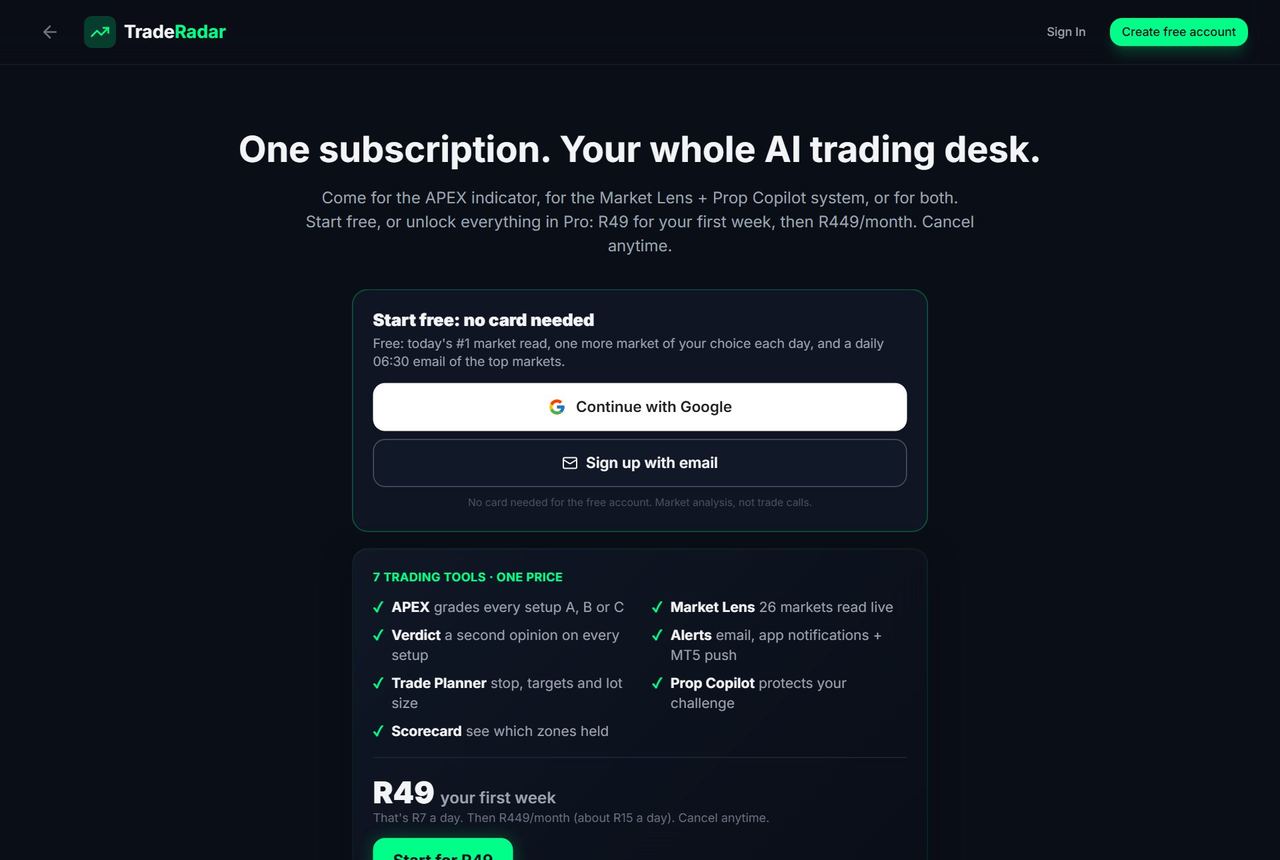
Free vs Pro
Pro opens all 27 markets with the AI read, Lens Alerts (email, phone and MT5 push), APEX (web, MT5, MT4; TradingView on request) with a structure checklist on every setup, the Trade Planner, Send to MT5 on demo accounts and 10 Prop Copilot accounts. Pro is R49 for your first week, then R399/month on the same payment method unless you cancel before day 8 (we email a reminder 2 days before). Cancel in 2 clicks: Settings → Subscription.
Install the app
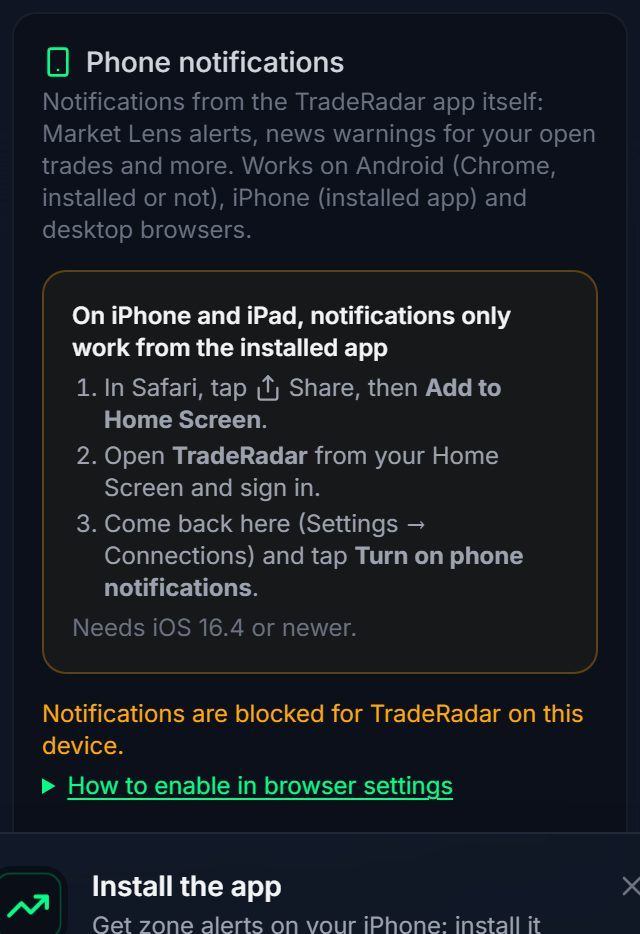
TradeRadar is a web app you can install. Android: open gettraderadar.com in Chrome → menu (⋮) → Install app (or Add to Home screen). iPhone / iPad: open it in Safari → Share → Add to Home Screen, then always open TradeRadar from the Home Screen icon. Desktop Chrome / Edge: the install icon in the address bar.
Turn on phone alerts
Settings → Connections → Alerts → "Turn on phone notifications", tap Allow, then "Send test notification". On iPhone this only works from the installed Home Screen app (iOS 16.4 or newer); see Troubleshooting if a test does not arrive.
2. Market Lens
Market Lens reads market structure on 27 markets (forex, rand pairs, gold, silver, oil, indices, Bitcoin, Ethereum) and draws it for you, refreshed every 15 minutes. It is built for swing and intraday structure, not M1/M5 scalping.
Open Market Lens
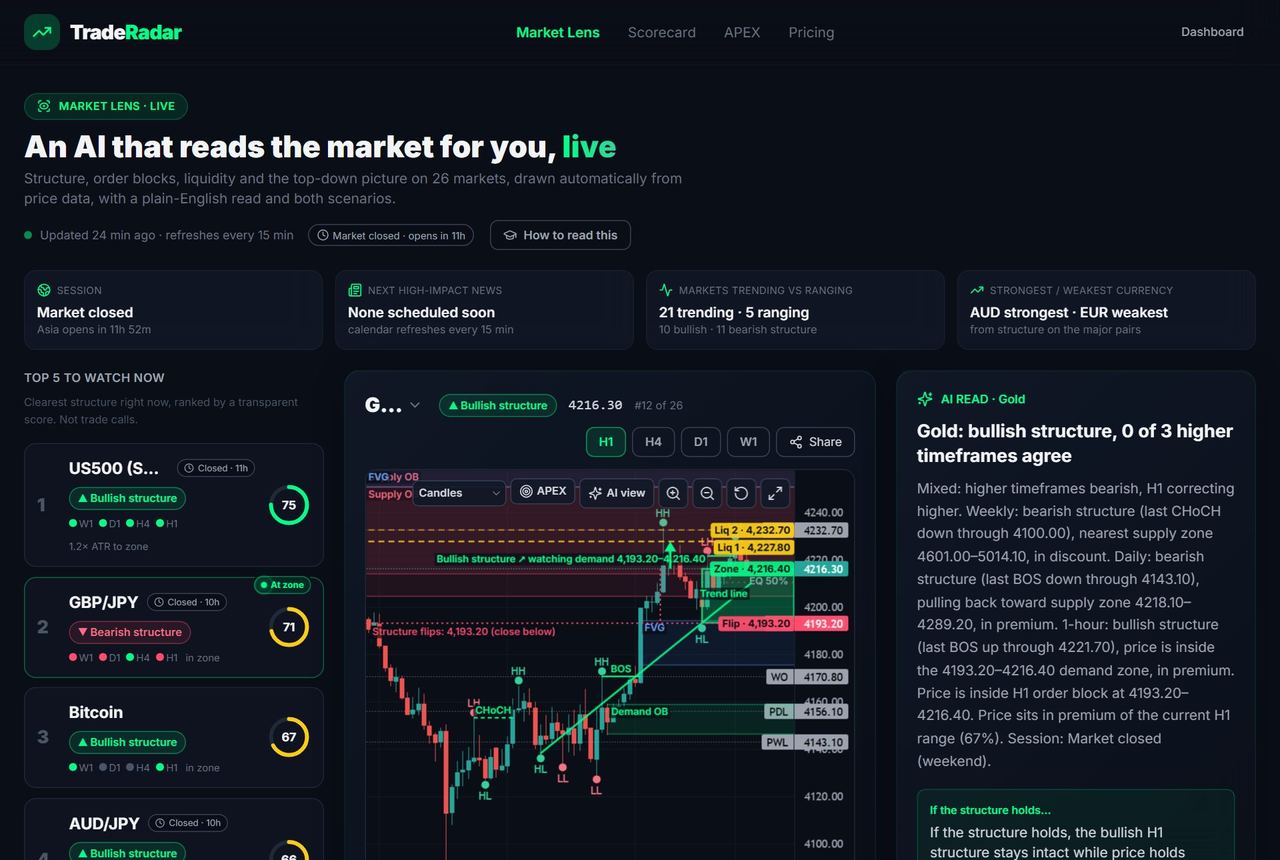
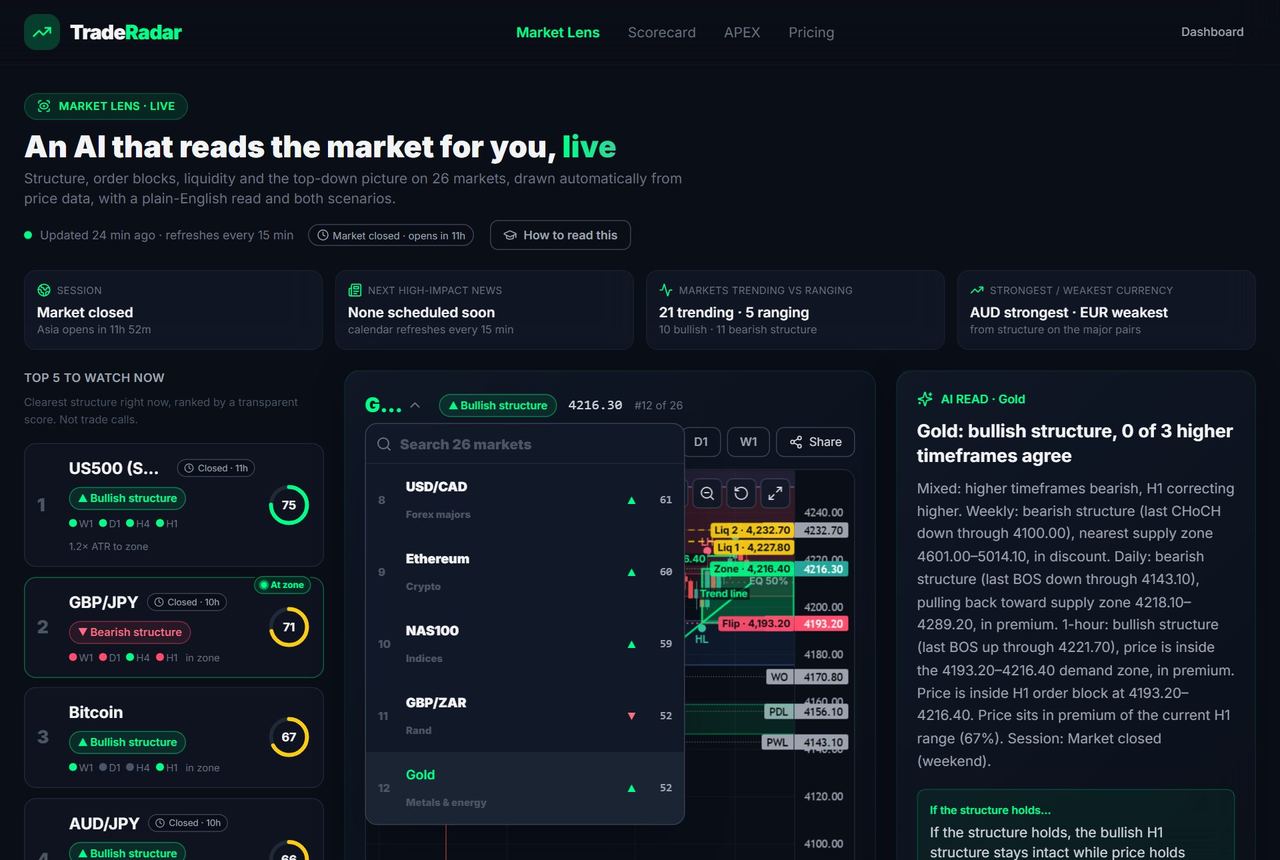
Go to gettraderadar.com/lens. The left column is the "Top 5 to watch" (clearest structure right now, 0-100 score). The chart shows the selected market; the right column is the plain-English read with both scenarios.
Read the zones
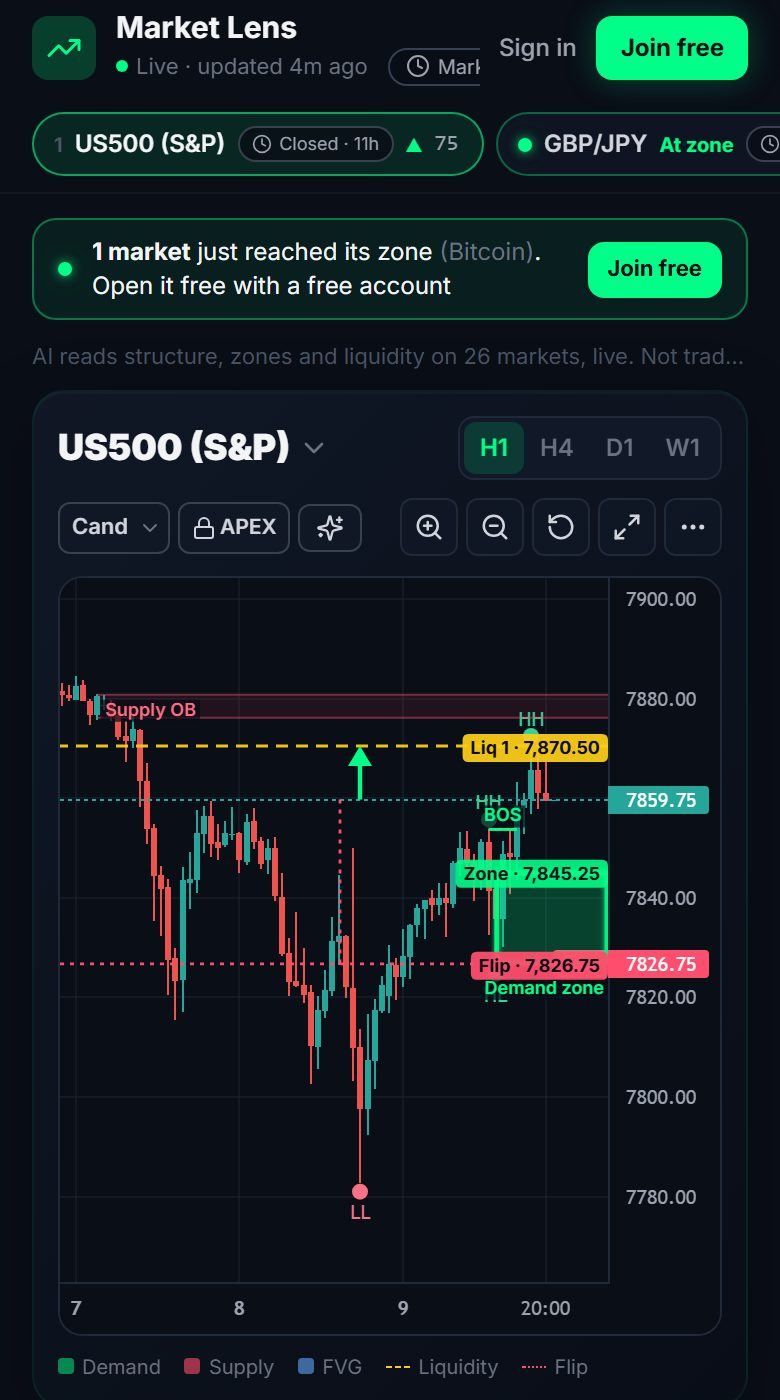
Green boxes are demand zones and red boxes supply zones (order blocks), with fair value gaps, liquidity (equal highs and lows), BOS / CHoCH labels, premium / discount and key levels (previous day and week high / low, week open). "How to read this" at the top explains every drawing.
Switch timeframe: H1, H4, D1, W1
Use the H1 / H4 / D1 / W1 buttons above the chart. Read top-down: W1 → D1 → H4 for the bias, H1 for the zone. There are no M1 / M5 charts; lower-timeframe traders use Lens as their higher-timeframe map.
Switch market
Tap the market name on the chart to open the switcher with all 27 markets and a search box. Locked markets show how to unlock them (Free: 3 extra unlocks a week when signed in, one a day; Pro: every market).
Top-down: higher timeframes first
Every read starts with the higher-timeframe (HTF) bias: weekly, daily and 4-hour structure combined (W1 counts once, D1 and H4 twice). It is Bullish or Bearish when they clearly agree, and Mixed when they disagree or are weak. The 1-hour is then the timing inside that picture. Each setup, zone and Trade this idea is labelled: "With the trend" (it points the same way as the higher timeframes), "Counter-trend — against W1/D1/H4 (pullback idea only)" (shown faint, in amber) or "Wait — higher timeframes disagree" (HTF Mixed). Demand zones are highlighted in a bullish HTF and supply zones in a bearish HTF; the other side is drawn faint. The market list ranks aligned clarity first. Alerts, phone pushes and emails only fire for with-trend setups, never counter-trend. One-click orders (Trade this, the Trade Panel buttons) are off for counter-trend setups unless you turn on "Allow counter-trend setups" in Settings → Trading (off by default); the Trade planner starts on the HTF side and asks before you plan the other side. Honest note: this is about clarity and discipline, not a proven edge. In our test of 32,031 zone touches on all 27 markets (January 2024 to October 2026), zones held about as often against the higher timeframes (60%) as with them (58%). Past results do not guarantee future ones.
Dollar context (DXY)
The US Dollar Index (DXY) is one of the 27 markets: full structure on H1, H4, D1 and W1. It is analysis only, because most brokers (IC Markets included) do not offer a DXY CFD, so there is no "Trade this" or Send to MT5 on it. It is also used as context: on EURUSD, GBPUSD, AUDUSD, NZDUSD, USDJPY, USDCHF, USDCAD, USDZAR, gold and silver the read shows "Dollar context: DXY H4 bullish/bearish — supports/opposes this read". Pairs with USD second (EURUSD) and gold move against the dollar; pairs with USD first (USDJPY, USDZAR) move with it. What happens when the dollar opposes your trade is your choice in Settings → Trading ("When the dollar opposes"): Warn (default: an amber note, nothing else changes), Half risk (Trade this, the Trade planner and the Trade Panel size at half your risk %) or Block (TradeRadar will not place it). Warn is the default because of our own test: across 12,063 zone touches on these 10 markets (June 2024 to October 2026), zones held 60% of the time with the dollar opposed and 58% with it on side. That gap is small and inconsistent, so the dollar is context, not a filter. Past results do not guarantee future ones.
Pick a chart type
The chart-type menu on the chart toolbar switches between Candles, Heikin Ashi, Bars, Line and Area. Candles are the default.
Turn on alerts
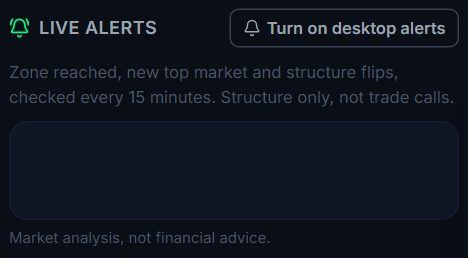
Under the chart, "Live alerts" lists zone reached, new top market and structure flips. Turn on desktop alerts there, or phone alerts in Settings → Connections. Lens Alerts are part of Pro; they pause while markets are closed.
On your phone
The same page works on a phone: the top market first, then the chart and the read.
3. Connect MT5 / MT4
The TradeRadar Connector links your MetaTrader terminal for the journal, Prop Copilot, news warnings on open trades, MT5 alerts and your APEX licence. It only reads the account: no password, no trading.
Copy your Connection key
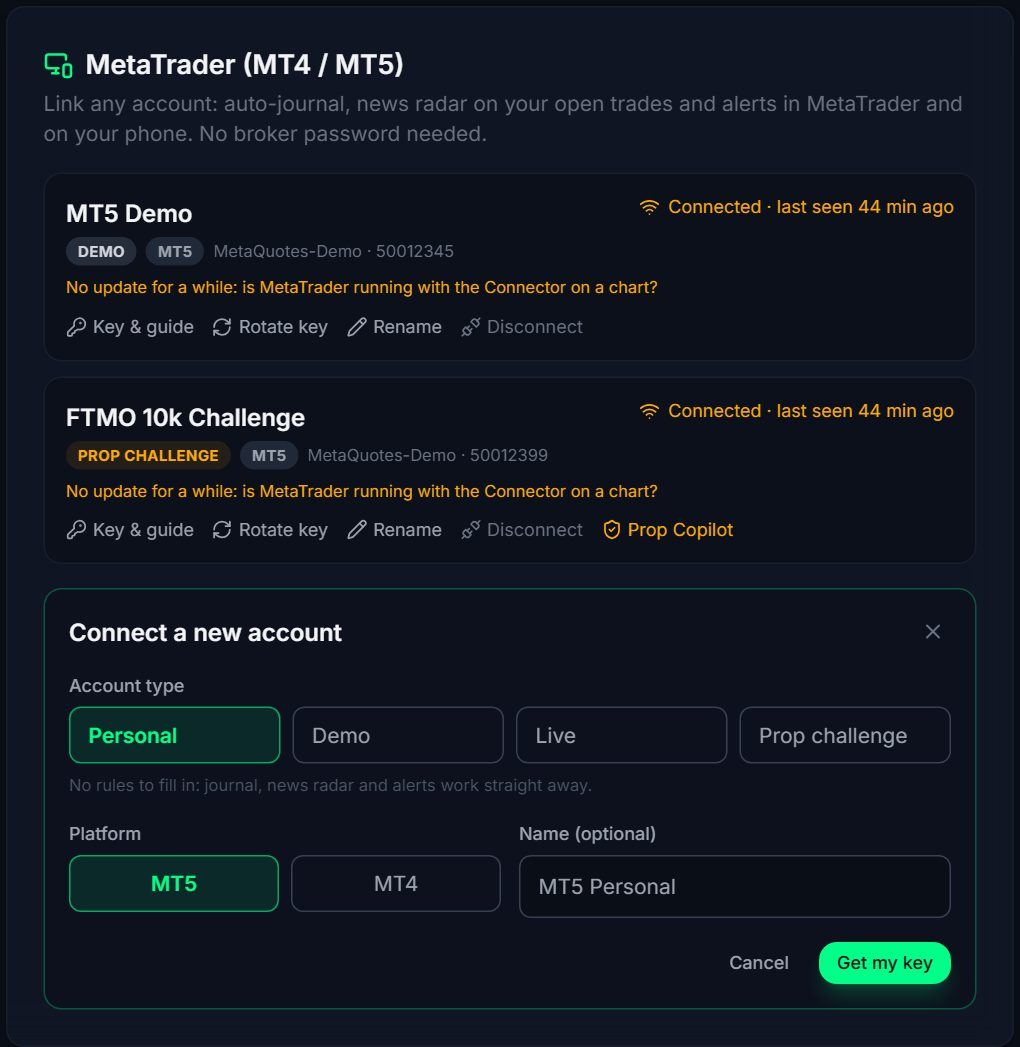
Settings → Connections (gettraderadar.com/settings#connections) → "Connect a new account". Pick Personal, Demo or Live (prop challenges are added in Prop Copilot), MT5 or MT4, and copy the ConnectionKey shown. Your APEX licence key is on the same page.
Download the kit
Download the MT5 kit (or the MT4 kit) from the APEX card in Settings → Connections or from /apex. Unzip it first (right-click → Extract All): MetaTrader cannot use files inside a zip.
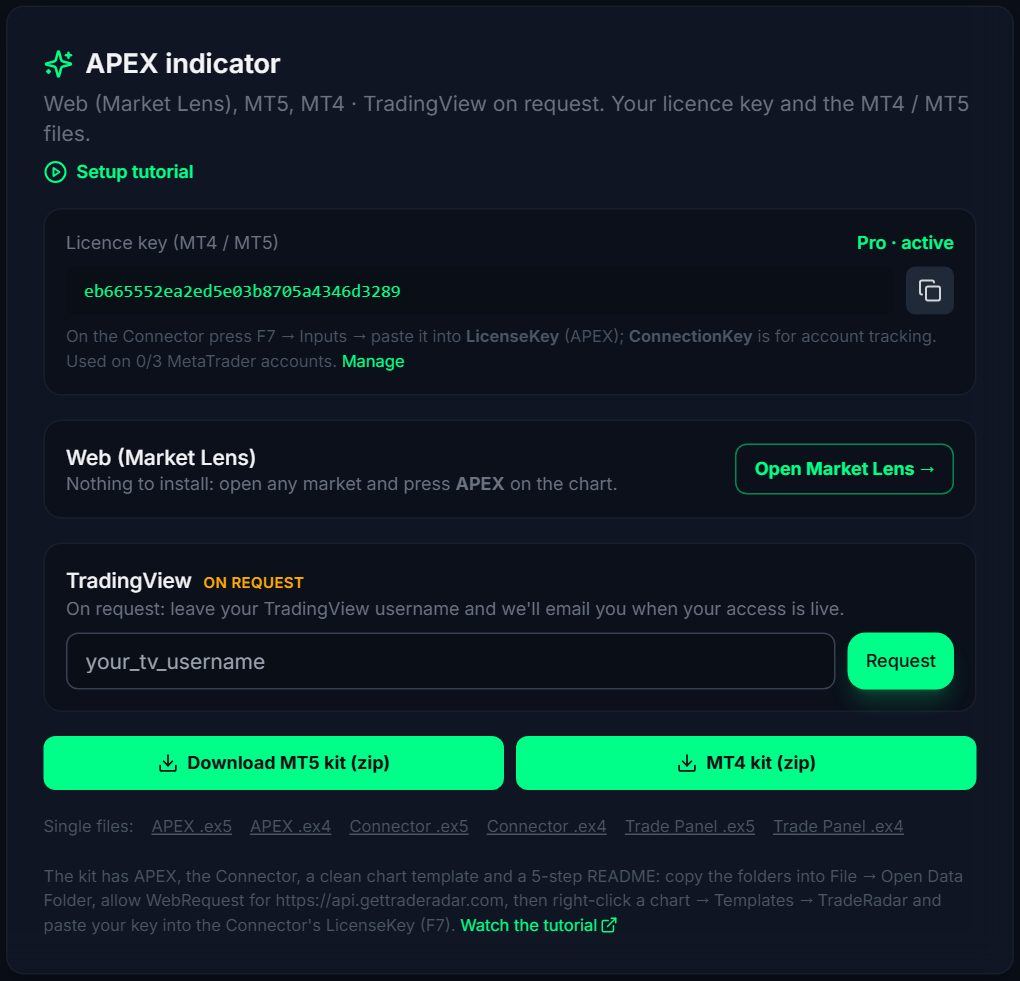
File → Open Data Folder
In MetaTrader: File → Open Data Folder (Ctrl+Shift+D). Copy TradeRadarConnector and TradeRadarPanel into MQL5\Experts, TradeRadar_APEX_M15 into MQL5\Indicators and TradeRadar.tpl into MQL5\Profiles\Templates (MQL4\... and the data folder's templates folder on MT4). Then right-click the Navigator → Refresh, or restart MetaTrader.
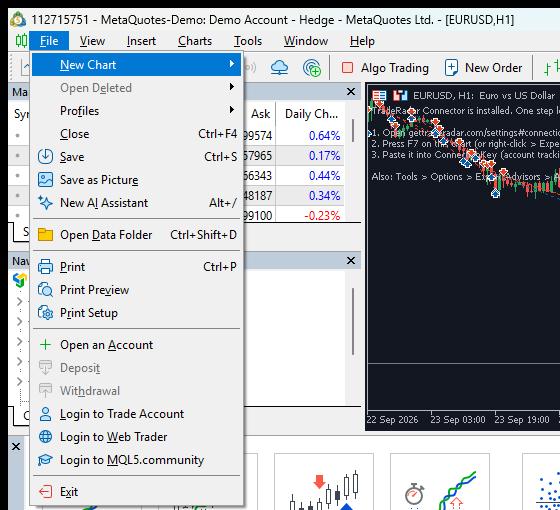
Allow WebRequest
Tools → Options → Expert Advisors: tick "Allow algorithmic trading" and "Allow WebRequest for listed URL", then add https://api.gettraderadar.com and click OK.
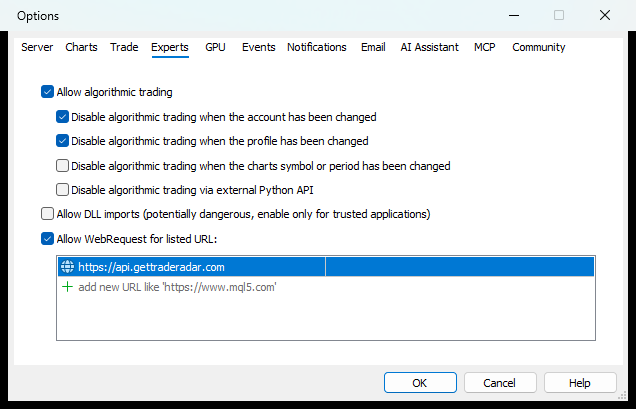
Attach the Connector on its own chart
Open a chart (any symbol), right-click → Templates → TradeRadar, or drag TradeRadarConnector onto it from the Navigator. Keep this chart for the Connector only: one Expert Advisor per chart. Until a key is set it prints "One step left".
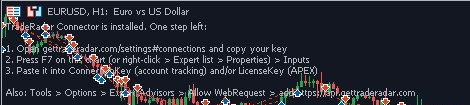
Paste the key (F7 → Inputs)
Select the chart, press F7 → Inputs: paste the ConnectionKey (account tracking) and / or the LicenseKey (APEX), click OK. Make sure Algo Trading is on in the toolbar.
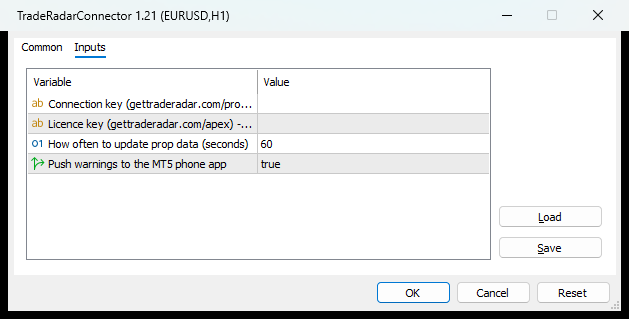
Check "Connected ✓"
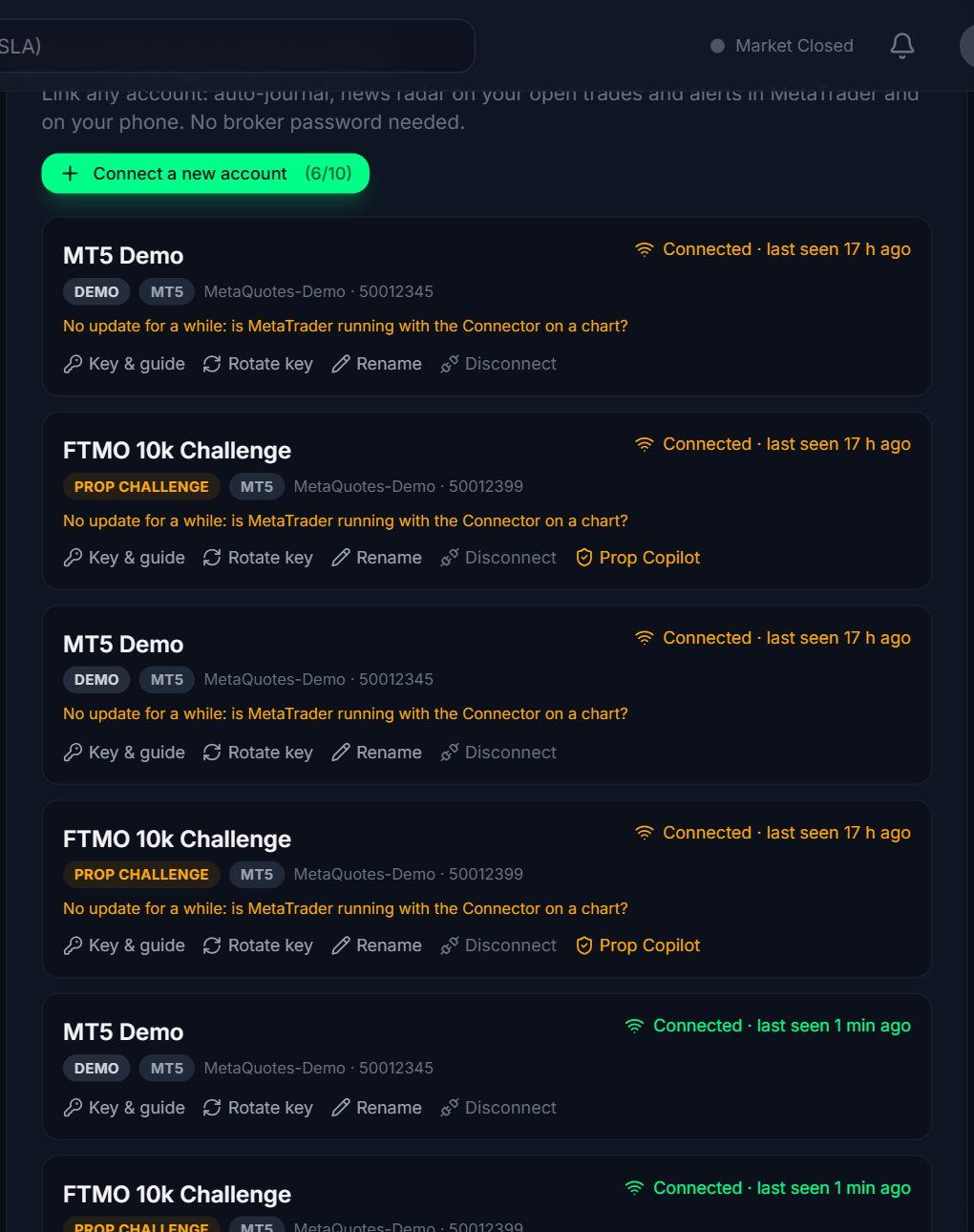
Within a minute the terminal shows "Connected" with the login and server in Settings → Connections. MT4: set the Account History tab to "All History" so the journal sees your closed trades.
4. Trade Panel (MT5 / MT4)
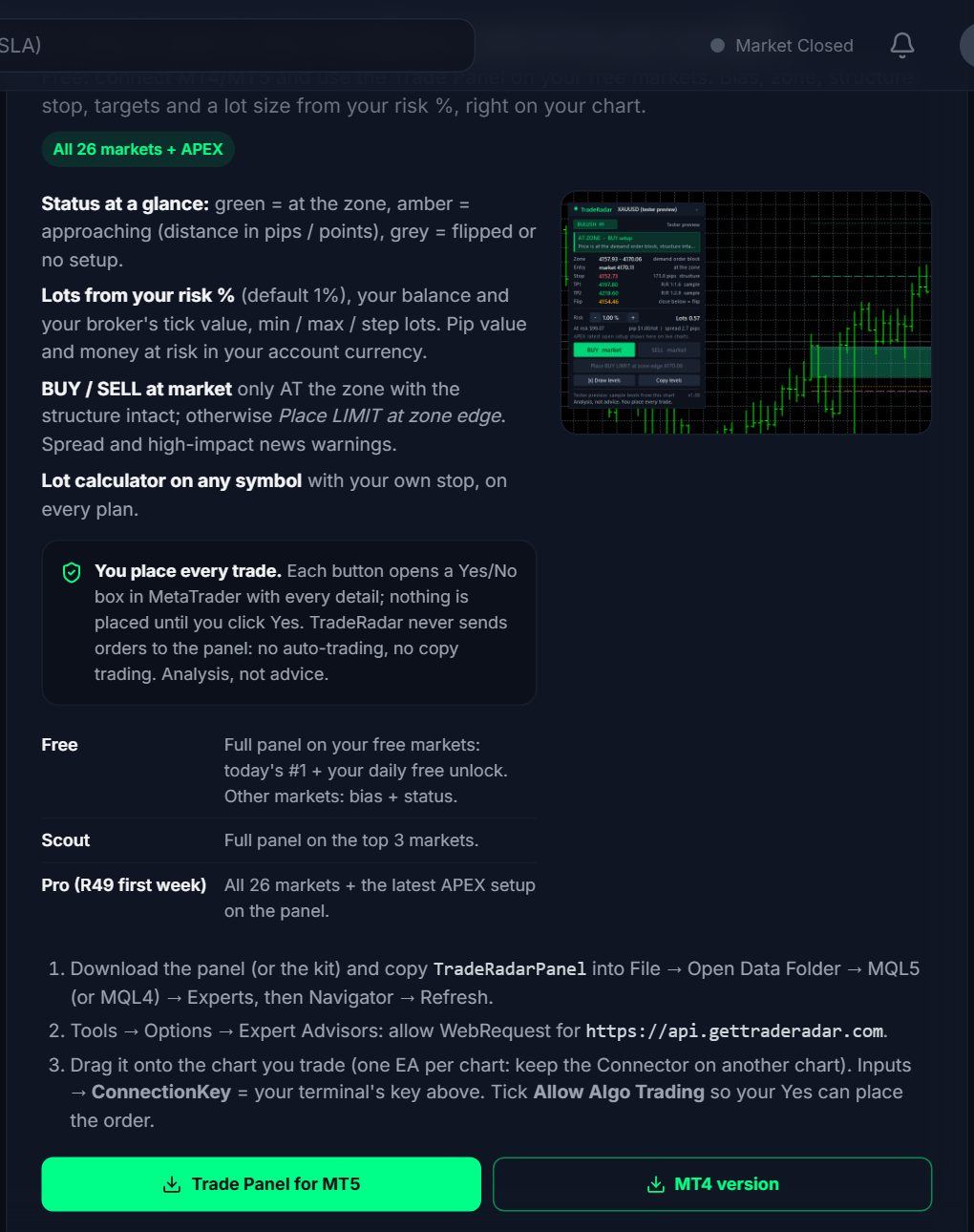
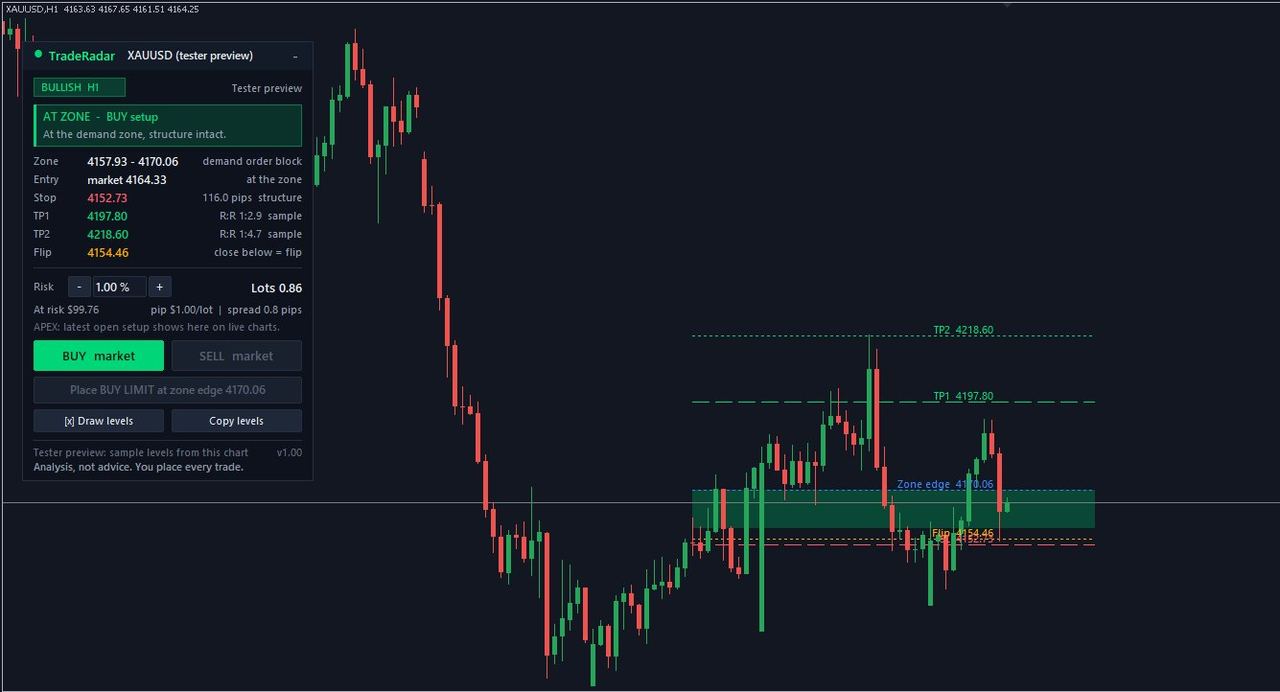
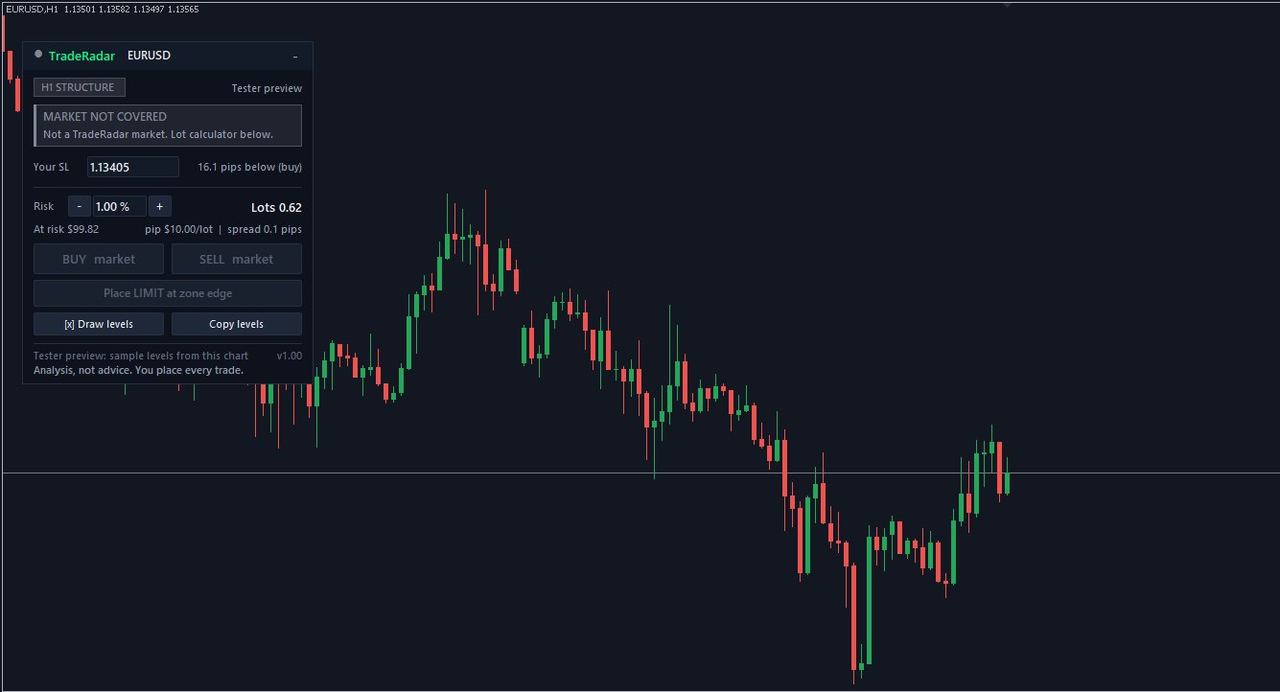
The Trade Panel shows the TradeRadar read on the chart you trade: H1 bias, the zone, the structure stop (1.5 ATR past the zone), the 3R target with R:R, the zone status, an optional break-even reminder for your own open trades and a lot size from your risk %. Every plan; Free covers your free markets.
Install the panel
Download TradeRadarPanel.ex5 / .ex4 (Settings → Connections or the kit) into MQL5\Experts (MQL4\Experts), refresh the Navigator and allow WebRequest for https://api.gettraderadar.com (see Connect MT5 / MT4).
Attach it to the chart you trade
Drag TradeRadarPanel onto your chart. One EA per chart: the Connector stays on a different chart. Inputs → ConnectionKey = this terminal's key. Common tab: tick "Allow Algo Trading" and turn Algo Trading on in the toolbar.
Set your risk %
Use - / + on the panel (default 1%). The lot size comes from your balance, your stop and your broker's tick value and lot limits; "At risk" shows the amount in your account currency.
Green: at the zone
Green = price is at the zone with the structure intact. BUY / SELL at market are enabled only here.
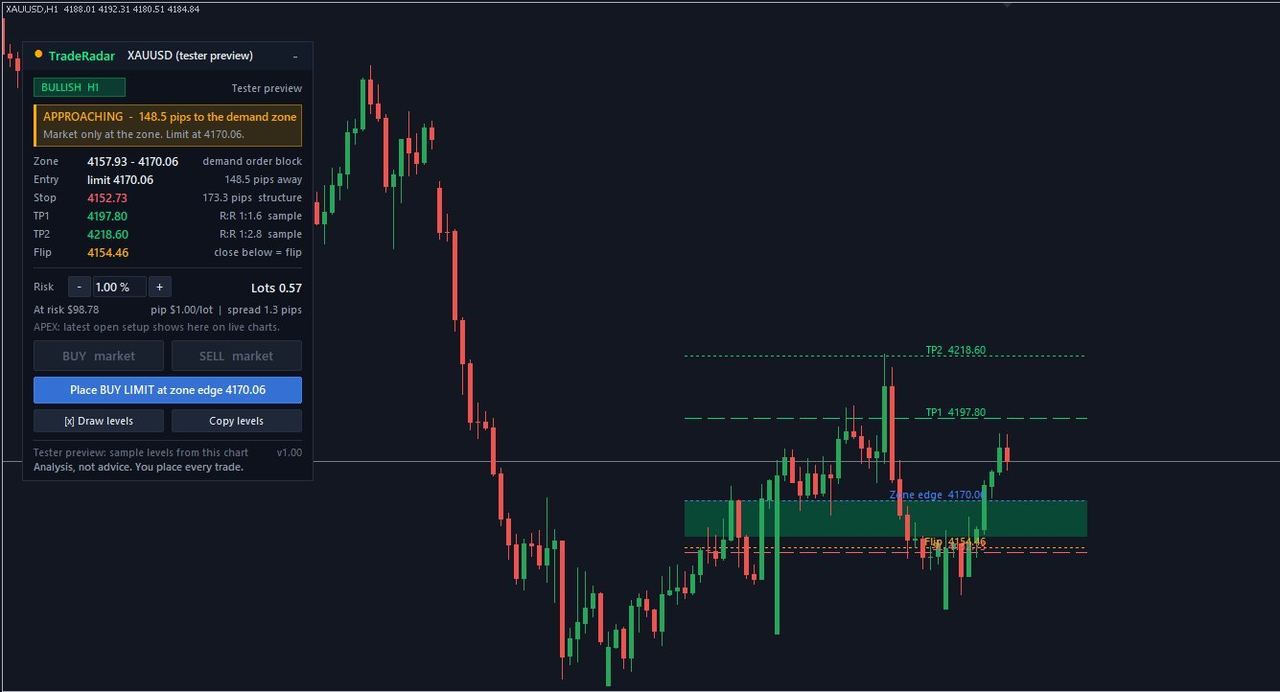
Amber: approaching
Amber = approaching, with the distance in pips / points. Market buttons stay off; use "Place LIMIT at zone edge" if that is your plan.
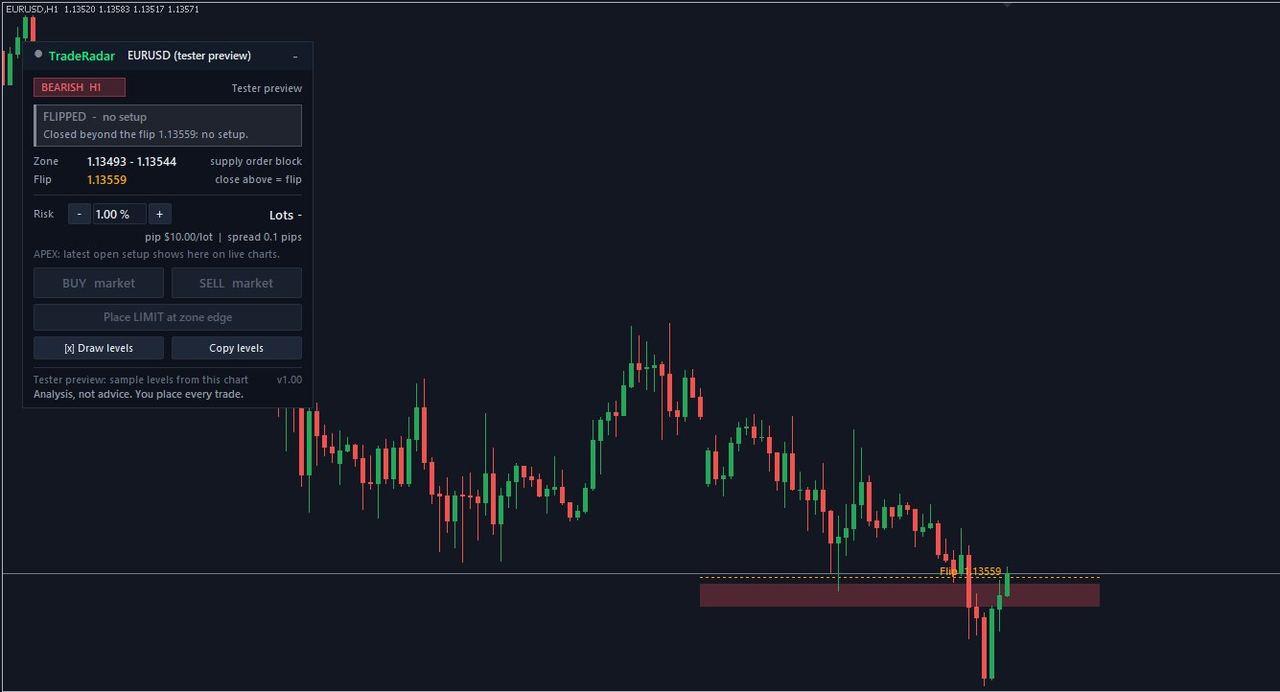
Grey: flipped / no setup
Grey = the structure flipped or there is no setup. Nothing to place.
Yes / No before anything is placed
Every button opens a Yes / No box in MetaTrader with the full order. Nothing is placed until you click Yes. TradeRadar never sends orders to the panel; no auto-trading, no copy trading.
Plans and odd symbol names
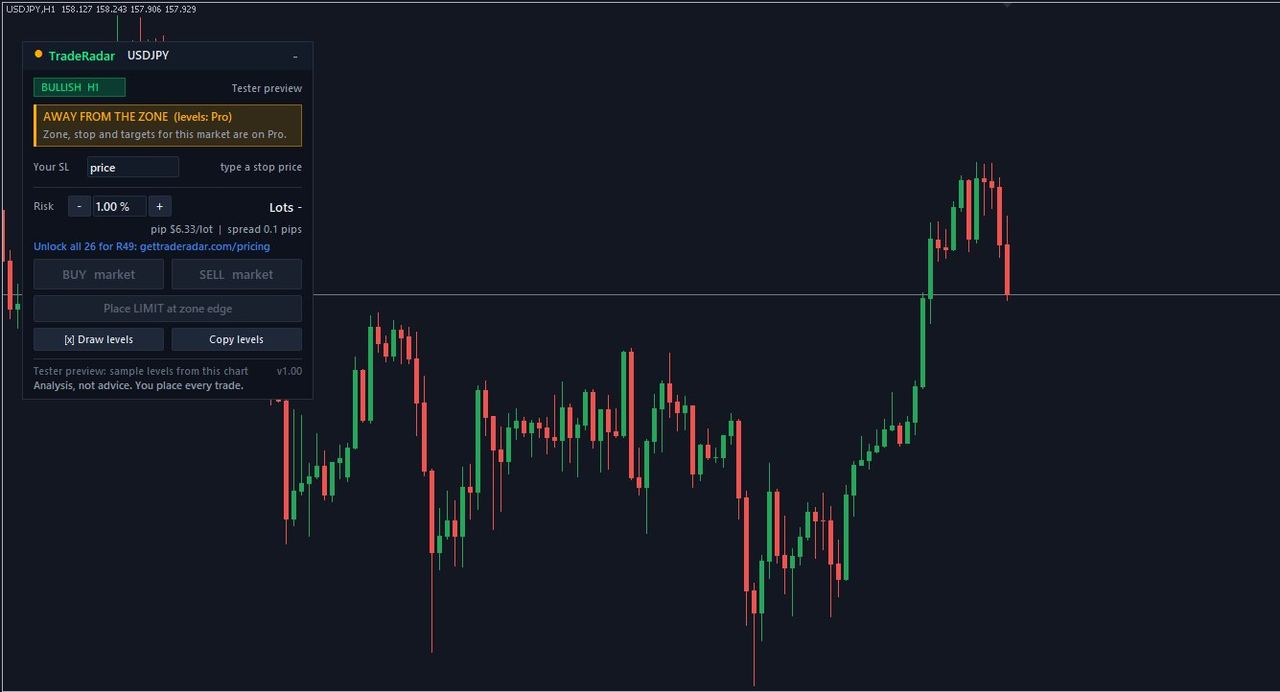
Free: full panel on today's #1 market and your daily free unlock; other markets show bias + status only. Scout: top 3. Pro: all 27 + the latest APEX setup. The lot calculator works on any symbol with your own stop. On USD pairs and gold the panel adds a dollar line: "Dollar: supports" (green) or, when the dollar opposes the setup, what your setting does: "Dollar opposes (little difference historically)" (Warn, the default; a note in the Yes/No box), "Dollar opposes: risk halved to 0.5%" (Half risk: the lots use half your risk %) or "Dollar opposes: blocked" (Block: no order). The panel follows Settings → Trading on the website; the Input DollarOpposedMode can override it on one chart. Panel 1.05 also shows the higher-timeframe bias ("HTF bearish (W1/D1/H4 all)") and labels the setup: a counter-trend setup shows an amber "Counter-trend — against W1/D1/H4 (pullback idea only)" line and its Buy/Sell buttons stay off unless "Allow counter-trend setups" is on in Settings → Trading (Input AllowCounterTrend can override it on one chart). A DXY chart works only if your broker offers it (USDX / DXY); most do not. If your broker names a market differently (XAUUSD.m, GOLD, US100), set SymbolOverride in the Inputs (e.g. XAUUSD).
5. APEX indicator
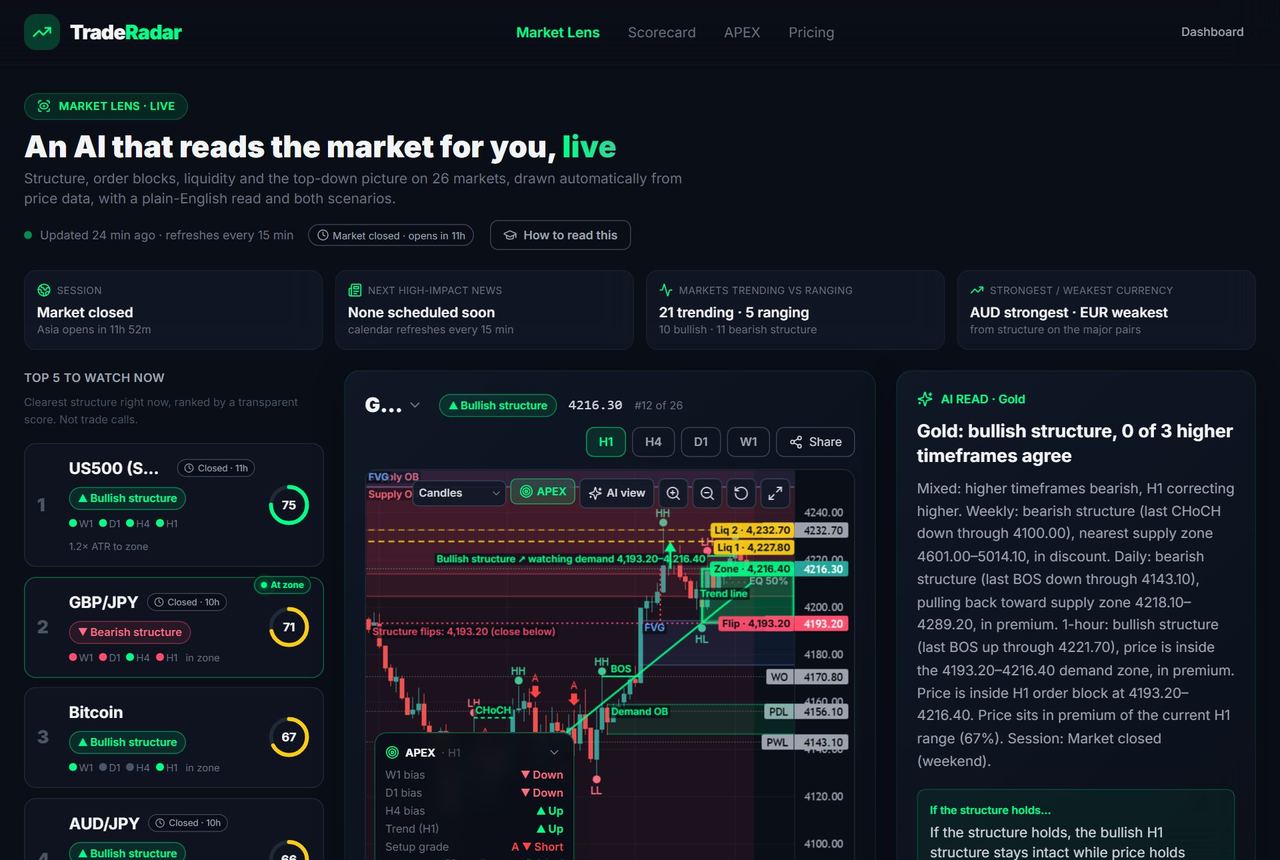
APEX grades trend-pullback setups A / B / C with the stop and two targets drawn, filtered by the daily and weekly bias, on closed candles only (no repainting). The MT5 / MT4 indicator is the same engine and the same settings as APEX on the website (1H chart, D1 + W1 bias, A setups only by default), so on the same candles it marks the same A setups. Your broker's prices can differ a little from the website's feed, so an occasional setup may differ. In Pro and Elite, including the R49 week. Analysis, not advice: you place every trade.
APEX on the website (nothing to install)
Open APEX (/apex-live) or press APEX on the Market Lens chart: graded setups, D1 / W1 bias shading, the SL / TP lines of the latest setup and a small dashboard.
1. Download
Download APEX for MT5 (TradeRadar_APEX_M15.ex5) or MT4 (.ex4) from /apex-live, /apex or Settings → Connections, plus the TradeRadar Connector (it checks your licence). The MT5 / MT4 kit has both.
2. File → Open Data Folder → MQL5 / Indicators
In MetaTrader: File → Open Data Folder (Ctrl+Shift+D) → MQL5 → Indicators (MT4: MQL4 → Indicators). The Connector goes in MQL5 → Experts.
3. Paste, then refresh the Navigator
Paste the file into Indicators, then right-click the Navigator → Refresh (or restart MetaTrader). APEX appears under Indicators.
4. Drag onto an H1 chart and paste the licence key
Drag TradeRadar_APEX_M15 onto an H1 chart and keep the default inputs (Minimum grade = A). Your licence key goes into the TradeRadar Connector on any chart of the same terminal: F7 → Inputs → LicenseKey (copy it from Settings → Connections or /apex-live). Allow WebRequest for https://api.gettraderadar.com (Tools → Options → Expert Advisors). Until the licence is active APEX shows "needs your licence".
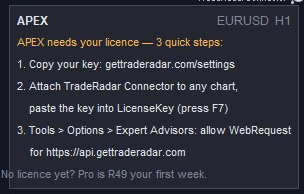
5. Allow alerts and push (MetaQuotes ID)
APEX alerts once per new A setup, on the closed candle: a pop-up in MetaTrader and, if on, a push to the MetaTrader phone app. For push: install MetaTrader on your phone, copy its MetaQuotes ID (Settings → Messages), then desktop Tools → Options → Notifications → tick Enable Push Notifications and paste the ID.
What you see on the chart
The dashboard (top right) uses the website's words: Bias 1D, Bias 1W, Trend 1H, RSI 14, Volatility, Pullback, Last setup, and whether the bias timeframes agree. Labels on the last 3 setups, small arrows on older ones, SL / TP1 / TP2 for the latest setup while it is open, and "APEX by TradeRadar · gettraderadar.com" in the corner. Inputs match the website: D1 + W1 bias (EMA 50, both required), EMA 20 / 50, RSI 14 / 50, pullback 6 bars, ATR 14, stop 3.5 ATR, TP1 1.5R, TP2 3R, volatility filter on. Set Minimum grade to B or C to see more.
TradingView (on request)
Leave your TradingView username on the APEX card (or /apex) and press Request. We email you when access is live; then add APEX from Indicators → Invite-only scripts. No licence key needed on TradingView.
6. Send to MT5 (demo accounts)
Pro (incl. the R49 week): send an order you planned in the Trade Planner to your own DEMO MetaTrader terminal. Real-money and contest accounts are always refused for customers. A tool you operate: no advice, no auto-trading, no copy trading.
Use the Exec Connector on your demo terminal
From the kit, put TradeRadarConnectorExec in MQL5\Experts and attach it to one chart of your DEMO account (instead of the plain Connector), with the same ConnectionKey.
Allow execution (off by default)
F7 → Inputs → AllowTradeExecution = true. Set MaxLotsPerOrder (default 0.10) and MaxOrdersPerDay (default 5), keep ConfirmEachOrder = true, and turn Algo Trading on.
Check "Demo ready"
Settings → Connections → Trade execution shows "Demo ready" when the demo terminal is online. You can switch the feature off there at any time.
Send from the Trade Planner
Market Lens → Trade Planner: pick direction, entry, a stop-loss (required) and an optional take-profit → Send to MT5 (demo) → check → Confirm, then click Yes in MetaTrader. Orders expire after 60 seconds and execute once.
7. Trade Planner
A risk calculator on the Market Lens chart (free on today's #1 market, every market on Pro). You pick the direction and your own entry; it never picks a trade.
Open the planner
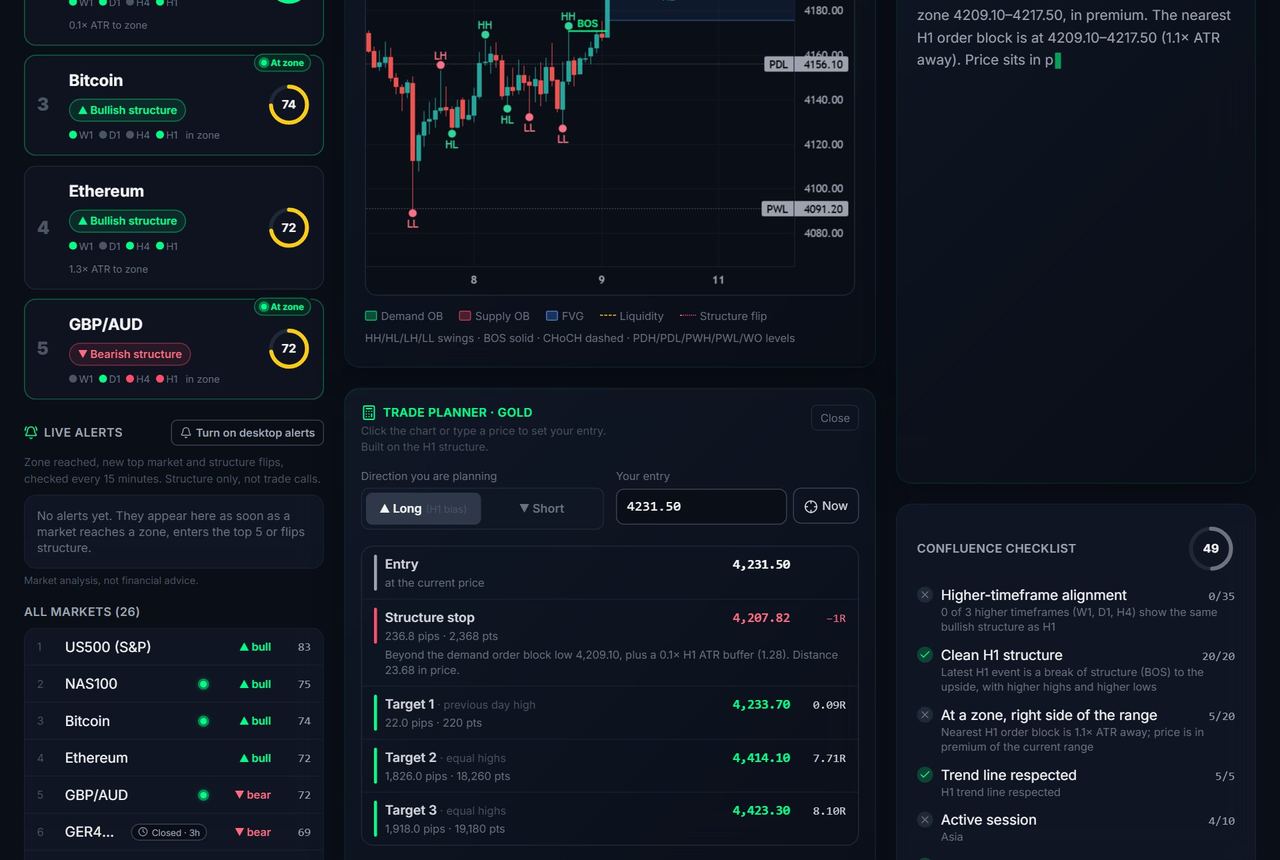
On Market Lens, open "Trade planner" under the chart. Choose Long or Short and your entry (type a price or click the chart).
Read the numbers
It places the structure stop beyond the flip level, measures the next liquidity levels in R, and works out an approximate lot size from your balance, account currency and risk %, with a warning if it would break a prop rule. Check your broker's contract size for indices and metals.
8. Scorecard
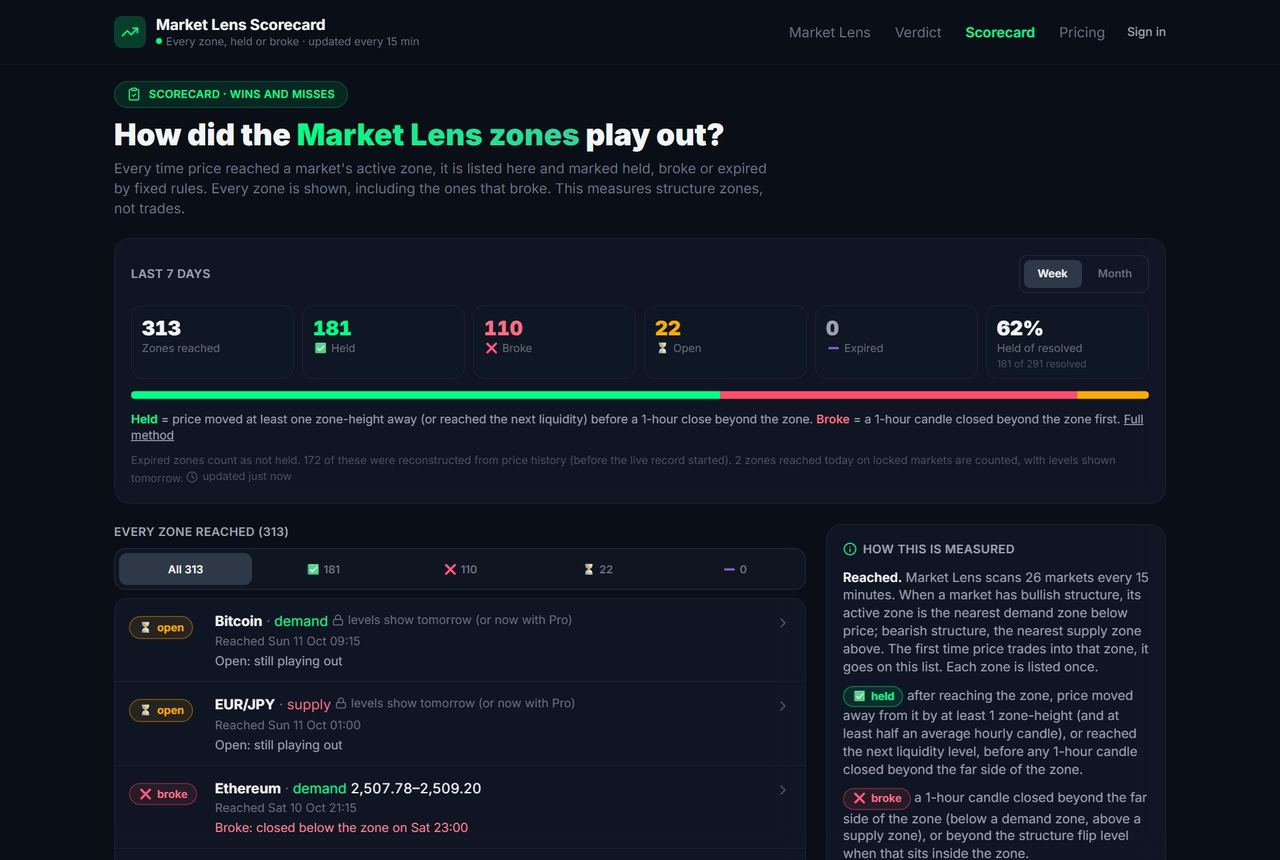
A free public record of how Market Lens H1 zones played out: held, broke or expired, misses included. Zones, not trades: no pips, profits or win rates.
Open the Scorecard
gettraderadar.com/scorecard: the last 7 days (or month), every zone reached, and "How this is measured" with the fixed rules.
9. Prop Copilot
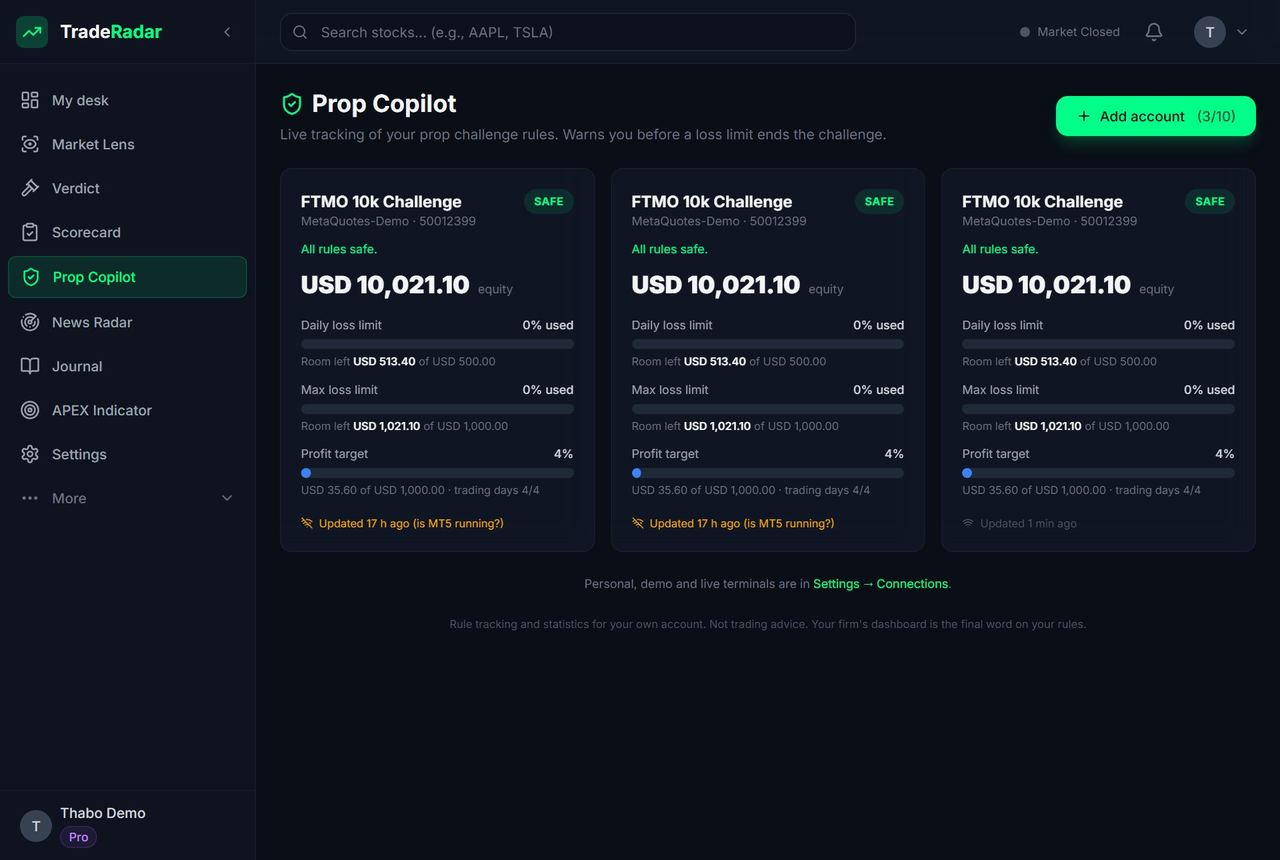
Tracks a prop challenge live (FTMO, FundedNext, The5%ers, FundingPips or custom rules): daily loss room, max loss room, profit target and trading days, with warnings at 50 / 75 / 90% of a limit.
Add the challenge
gettraderadar.com/prop → Add account: pick the firm and phase, check the rules against your firm's current terms, and save. Copy the connection key.
Run the Connector with that key
Paste it into the Connector's ConnectionKey (F7 → Inputs) on the challenge terminal. Warnings arrive on the MT5 chart, by MT5 push and by email. Free: 1 account, Pro: 10.
10. Journal
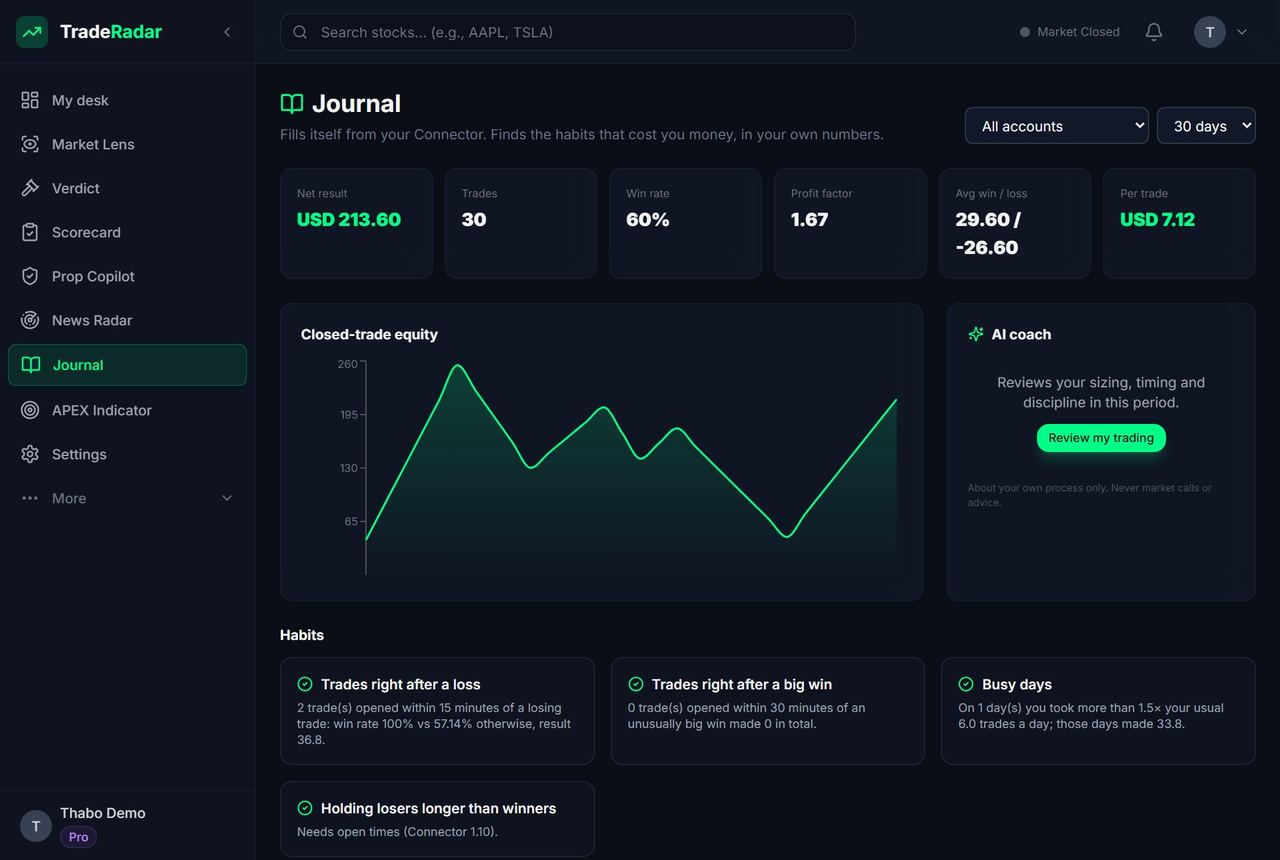
The journal fills itself from the Connector and flags habits: oversizing, trading right after a loss, holding losers. Add notes and tags; the AI coach is on paid plans.
Connect, then trade as usual
Once a terminal is Connected, closed trades appear in gettraderadar.com/journal with equity, stats and habits. MT4: Account History → All History.
11. News Radar
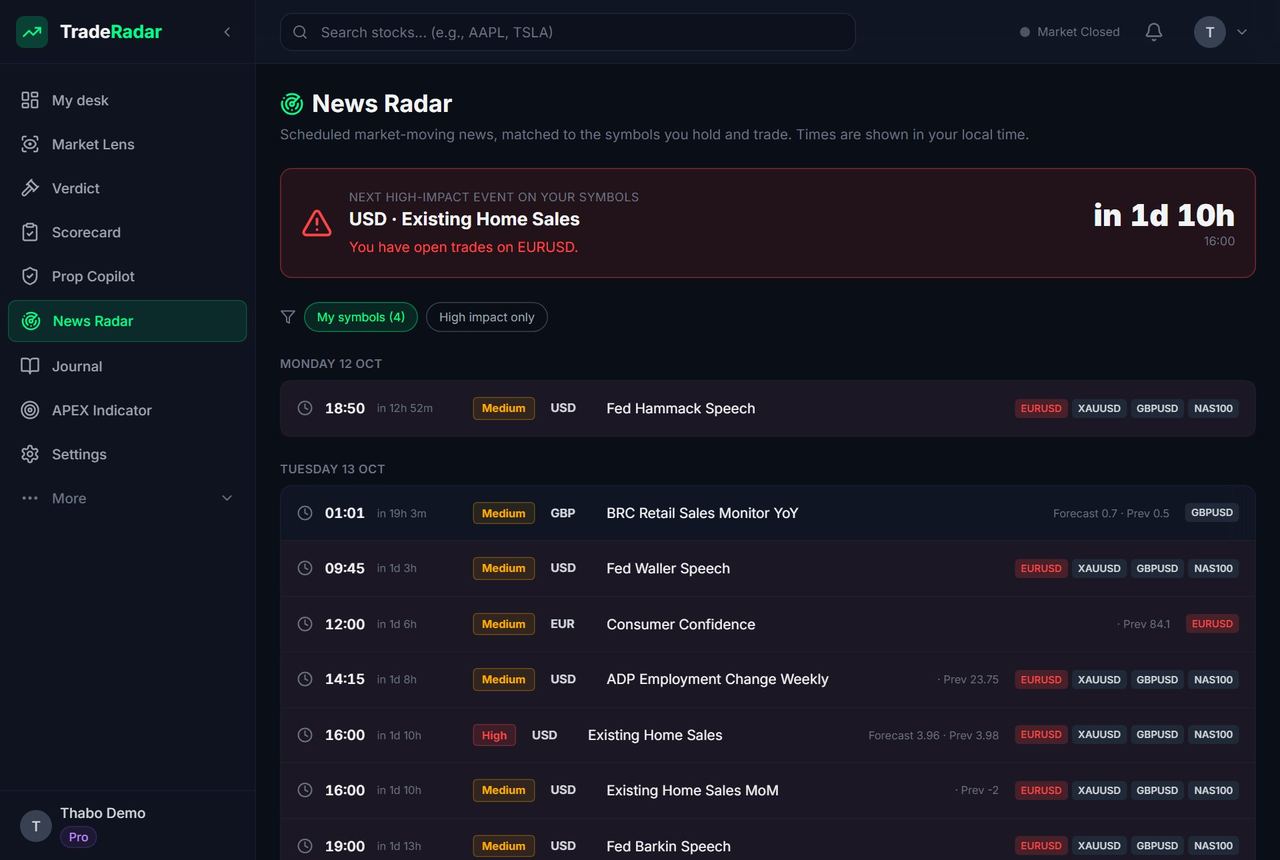
High and medium impact events matched to the symbols you trade, in your local time, with a warning 15 minutes before high-impact news on an open position.
Open News Radar
gettraderadar.com/radar. "My symbols" uses your open and recent trades from the Connector; switch to all events or high impact only.
12. Free tools
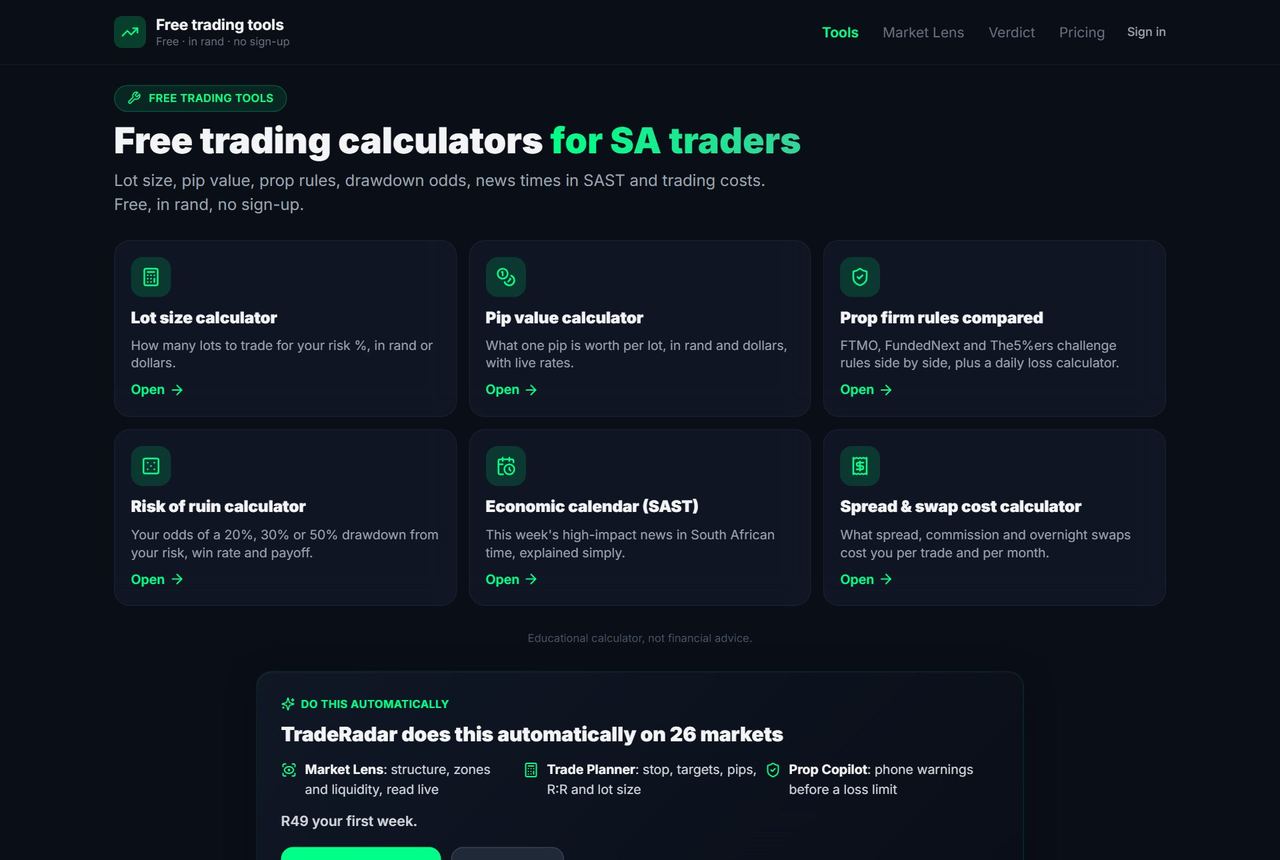
Free calculators, no account needed: lot size, pip value, prop firm rules, risk of ruin, economic calendar, spread & swap cost.
Open the tools
gettraderadar.com/tools. Each tool explains how it works; results use standard contract sizes, so check your broker's specification.
13. Troubleshooting
The fixes for the problems people actually hit. Each one has its own link.
No APEX arrows, or a market is locked
APEX and all 27 markets need Pro / Elite or the R49 week: check Settings → Subscription (sign out and in after paying). On MT5 / MT4: the Connector must run with your LicenseKey in the same terminal, APEX on H1 with default inputs (Minimum grade A shows A setups only). Setups print on closed candles only: a quiet chart is normal. On Free, use your daily free unlock.
"Licence not active" / "needs your licence"
Copy the key again from Settings → Connections → APEX, paste it into the Connector's LicenseKey (F7 → Inputs) in the same terminal, check WebRequest (below). Licence limit reached: remove an old MetaTrader login on /apex (one licence = 3 logins).
Terminal not "Connected"
Keep MetaTrader running with the Connector on its own chart and Algo Trading on. Check the ConnectionKey (F7 → Inputs; rotate it in Settings → Connections if unsure) and WebRequest. "No update for a while" means the terminal or the Connector is off.
WebRequest error 4014 or 5203
4014: WebRequest is not allowed: Tools → Options → Expert Advisors → tick "Allow WebRequest for listed URL" and add https://api.gettraderadar.com exactly, then re-attach the EA. 5203: the request failed: check your internet, firewall or antivirus, and that the URL has no typo or trailing path.
Phone notifications not arriving
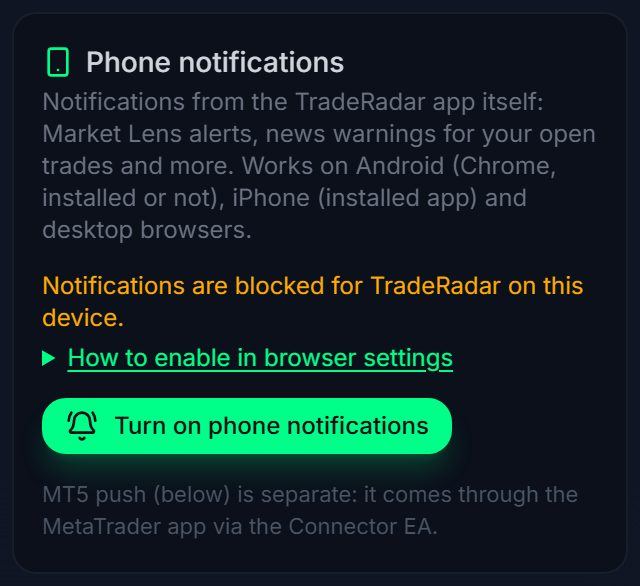
Press "Send test notification" in Settings → Connections. iPhone / iPad: notifications only work from the app installed via Safari → Share → Add to Home Screen (iOS 16.4+), opened from the Home Screen; turn them on inside that app. Android: allow notifications for gettraderadar.com (or the installed app) in the phone settings and turn off battery optimisation for Chrome. "Blocked" means the browser setting is off. MT5 push is separate: MetaQuotes ID in the MT5 phone app → desktop Tools → Options → Notifications.
Broker symbol suffix (XAUUSD.m, GOLD, US100)
If your broker names a market differently, the Trade Panel cannot match it: set SymbolOverride in its Inputs to the TradeRadar name (e.g. XAUUSD, NAS100). On a symbol TradeRadar does not cover, the lot calculator still works with your own stop.
"Not enough money" (10019 / error 134) on a Trade Panel order
Your broker needs margin to open a trade, and a risk-% size can need more margin than a small account has free: on a $90 balance, 0.10 lots USDCAD at 1:100 leverage needs about $100 margin, so the broker refuses it. Trade Panel 1.01 checks your free margin first: the lots are capped to the largest size that fits ("Lots capped to 0.08 by free margin"), the margin needed is shown under the lots, and the buttons turn off with "Not enough free margin for the minimum lot (needs $Y)" when even the broker minimum does not fit. It uses at most 90% of your free margin per order (MarginUsePct in the Inputs). Fix: update to the latest panel from the kit, lower the risk %, close or reduce other positions, add funds, or use an account with higher leverage. Open positions and pending orders use free margin too.
One EA per chart
MetaTrader runs one Expert Advisor per chart. Attaching the Trade Panel replaces the Connector on that chart (and the other way round). Put the Connector on its own chart and the panel on the chart you trade.
Kit files not showing in the Navigator
Unzip the kit first (right-click → Extract All). Copy the .ex5 files (not the zip) into the data folder from File → Open Data Folder, not Program Files. Then right-click the Navigator → Refresh, or restart MetaTrader. MT4 needs the .ex4 files and the MQL4 folders.
Analysis, not advice. You place every trade. Trading leveraged products carries a high risk of losing money. TradeRadar is not a financial services provider and gives no trade recommendations.